HTML Syntax(2)
- There are various types of <input> available within the <form> tag.

ex1) <input name="color" type="color" autofocus />
=> color type input enables use to enter a color
=> autofocus attribute automatically gives focus to the input element. Therefore, only one input element on a form can use autofocus.

ex2) <input name="date" type="date" />
=> date type input display a text field to enter date or display a calender to choose a date.

ex3) <input name="email" type="email" placeholder ="name@domain.com" required />
=> email type input makes user to enter an email address or list or emails separated by commas. display a text field.
=> validates whether email address is in proper format.
=> placeholder attribute places temporary text which is displayed in light gray.
=> required attribute forces use to enter a value

ex4) <input name="number" type="number" min="0" max="7" step="1" value="4" />
=> number type input gets a number type input displayed by a text field or a spinner control

ex5) <label for="range"> <input id="range" name="range" type="range" min="0" max="20" value="10" />
=> range type input appears as a slider control to set the min and max and then specify a value.
=> using for attribute in the label tag, user could control the range by clicking on the label instead.
=> difference between value and placeholder is that value is displayed as the default value untill the user alters it, while placeholder is just displayed when the certain input is not focused, therefore it is not a default value.

ex6) <input name="search" type="search" placeholder="search query" />
=> search type input provides a search field for entering a query.

ex7) <input name="tel" type="tel" placeholder ="(###) ###-####" pattern="\(\d{3}\) +\d{3}-\d{4}" required />
=> tel type input provides a textbox to enter a telephone number.
=> To ensure proper format, regular expression is used in pattern attribute.

ex8) <input name="time" type="time" min="11:00" max="21:00" step="900" value="12:00 />
=> time type input gets hour & minute as input displayed by text field. The step means how much the time is incremented in the text field.

ex9) <input name="url" type="url" placeholder="https://www.csknowledge.tistory.com" />
=> url type input is rendered as text field to get url from user.
=> In case of improper format, the URL will not validate.
- In HTML5, all input types are self validating on a client side.
- Therefore there is no need to add complicated JavaScript code on the server side to validate the input.
- This reduces the amount of invalid data submitted.
- However, the server should still validate user input.
- To bypass validation, there is a formnovalidate attribute to a submit button.
ex) <input type="submit" value="submit" formnovalidate />
- The autocomplete attribute automatically fill in a user's information based on previous input.
ex) <form method="get" autocomplete="on" action="https://www.csknowledge.tistory.com>

- The datalist tag is used to provide input options for a text input.
- option tags are nested within a datalist tag to decide the input options
ex) <input type="text" list="months" placeholder="select" /> <datalist id="months"> <option value="1"> </datalist>
- input tag has a attribute called readonly and disabled.
- While readonly="readonly" controls whether or not a user can edit the form control, disabled even makes it the input nonfocusable.
- This means that disabled controls are entirely non-interactive.
- disabled controls are used for text only, because it does not make sense for checkboxes or buttons.
- To summarize, readonly element is just not editable, but sent on submit. Disabled element isn't editable and isn't sent on submit.
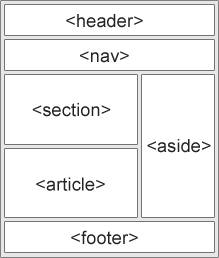
- HTML has semantic elements to meaningfully identify page areas.
ex1) <section> </section> : defines a section in a document.
ex2) <article> </article> : specifies independent self-contained content such as forum post, blog post, news article.
=> article tag could potentially be reused or distributed elsewhere.
ex3) <header> </header> : represents a container for introductory content or a set of navigational links.
=> header tag typically contains heading elements(<h1></h1>), logo or icon, authorship information
ex4) <footer> </footer> : defines a footer for a document or section.
=> usually appears at the bottom of the content or section element to describe copyright notice and address.
ex5) <nav> </nav> : defines a set of navigation links.
ex6) <aside> </aside> : defines some content aside from the content it is placed in like a sidebar.
=> it is related to surrounding content such as an article but, somewhat separate from the flow of the text.
ex7) <figure> </figure> : specifies self-contained content like illustrations, diagrams, photos, source code.
=> <figcaption> </figcaption> : defines a caption for a figure element.